Find deals
Search properties by location, type, equity, owner status and more, then see them on a map with property cards. Save the ones you like.
Spur MCP connector
Spur connects to the AI assistant you already use. Type something like “Find absentee-owned single-family homes in Tampa with 40%+ equity, skip trace the owners, and draft a postcard” and your assistant does it in your Spur account. You review and approve the results without leaving the chat.
https://mcp.usespur.com/mcp
Paste this into whichever assistant you use. It's the same for every assistant and every Spur account.


Jump to your assistant
Quick answer
Add Spur as a custom MCP connector using the URL https://mcp.usespur.com/mcp,
then sign in with your Spur account when the sign-in window opens. Spur works with Claude, ChatGPT,
Microsoft Copilot, Google Gemini, Grok and Perplexity. Once connected, you can search properties,
skip trace owners, design and mail postcards and letters, and run SMS and email outreach from a chat. There's no
extra charge, nothing to install, and nothing that costs money or contacts people happens without your approval.
| Assistant | Where to add Spur | Plans | Interactive previews |
|---|---|---|---|
| Claude |
Customize → Connectors → + Add → Add custom connector | Free, Pro, Max, Team, Enterprise | Yes |
| ChatGPT |
Settings → Plugins → Add → Add custom MCP server | Plans that allow custom MCP servers | Yes |
| Microsoft Copilot |
Copilot Studio agent → Tools → Model Context Protocol | Microsoft 365 work account with Copilot Studio | No (text) |
| Google Gemini |
Customize → Connectors → + Custom | Accounts with custom connectors; Gemini Enterprise | No (text) |
| Grok |
Plugins → Connectors → New Connector → Custom | Grok, Grok Business, Enterprise | No (text) |
| Perplexity |
Plugins → Add custom → Add MCP connector → Remote | Accounts with custom connectors; Enterprise | No (text) |
What is the Spur MCP connector?
MCP (Model Context Protocol) is an open standard that lets AI assistants use outside tools. Spur provides the socket, and Claude, ChatGPT, Gemini and the others each have a plug that fits it.
Search properties by location, type, equity, owner status and more, then see them on a map with property cards. Save the ones you like.
Look up property owners and skip trace them for phone numbers and emails.
Create property lists and add properties to them.
Design postcards (6×4, 6×9, 6×11) and letters, preview them with a real recipient's details, add tracked QR codes, and mail them.
Write and design email and text templates, preview them as they'll look in an inbox or on a phone, and send yourself a test email.
Build multi-step sequences (email, SMS, direct mail, waits), enroll owners, and turn them on.
Read your SMS conversations with owners.
Schedule property searches to run weekly, every two weeks or monthly.
Check campaign stats, direct mail analytics, outreach reports and QR code scans.
Check your balance, top up your wallet, or change your plan.
Spur includes prompts such as Deal hunt, Motivated seller research, Follow up hot leads, Postcard campaign, Letter campaign, Outreach sequence and Weekly review. In assistants that show MCP prompts, you'll find them in the prompt or attachment menu.
Interactive previews
Other assistants show the same results as text. Everything still works, you just won't see the map or the visual previews.
How it keeps your account safe
When you connect, the assistant opens Spur's sign-in page. You sign in with your Spur email and password (and your MFA code, if you've turned it on), or with Google. Your password goes to Spur, never to the AI assistant.
Every request uses your own Spur session, so your team roles, permissions, billing limits and activity logs apply exactly as they do in the Spur app.
Sending postcards, letters or texts, skip tracing, enrolling owners in automations, turning automations on, and charging your card all require you to approve that exact action first. For mail, Spur:
Drafting a message or building a new automation never sends anything. New automations start switched off.
When you top up or upgrade from a chat, Spur gives you a Stripe checkout link. Your card details never pass through the chat.
Remove the connector in your assistant's settings, or go to Spur → Security and sign out your sessions. Signing out in Spur also disconnects every connected assistant.
Before you start
Book a demo or sign up at usespur.com if you don't have one.
Requirements vary by assistant and are listed in each section below.
Most assistants only let you add connectors on the web. Once you've connected Spur, you can use it on mobile too.
If you're on a company or team plan (Claude Team or Enterprise, ChatGPT Business or Enterprise, Microsoft 365, Grok Business, Perplexity Enterprise), your administrator may need to add or allow Spur first. Each section below explains what your admin needs to do.
Setup guide
Claude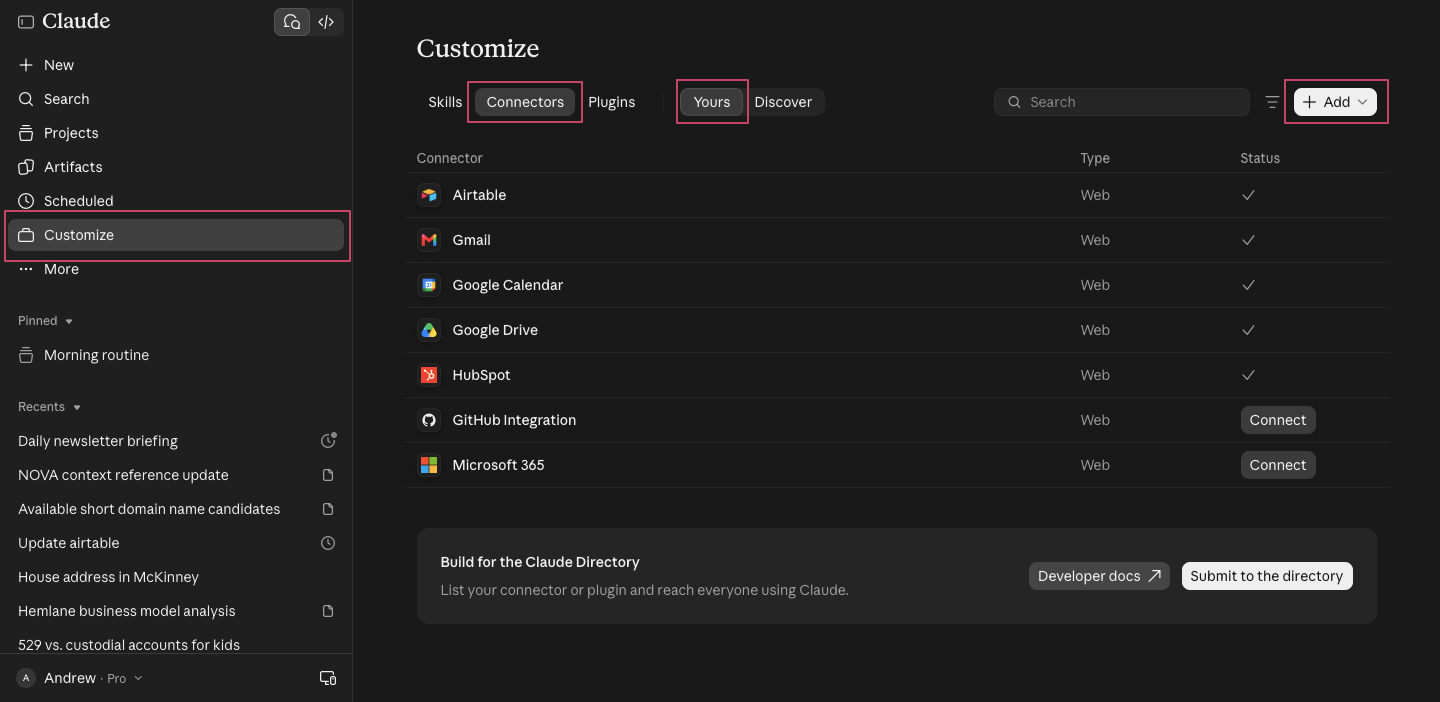
Spur.https://mcp.usespur.com/mcp and click Continue.
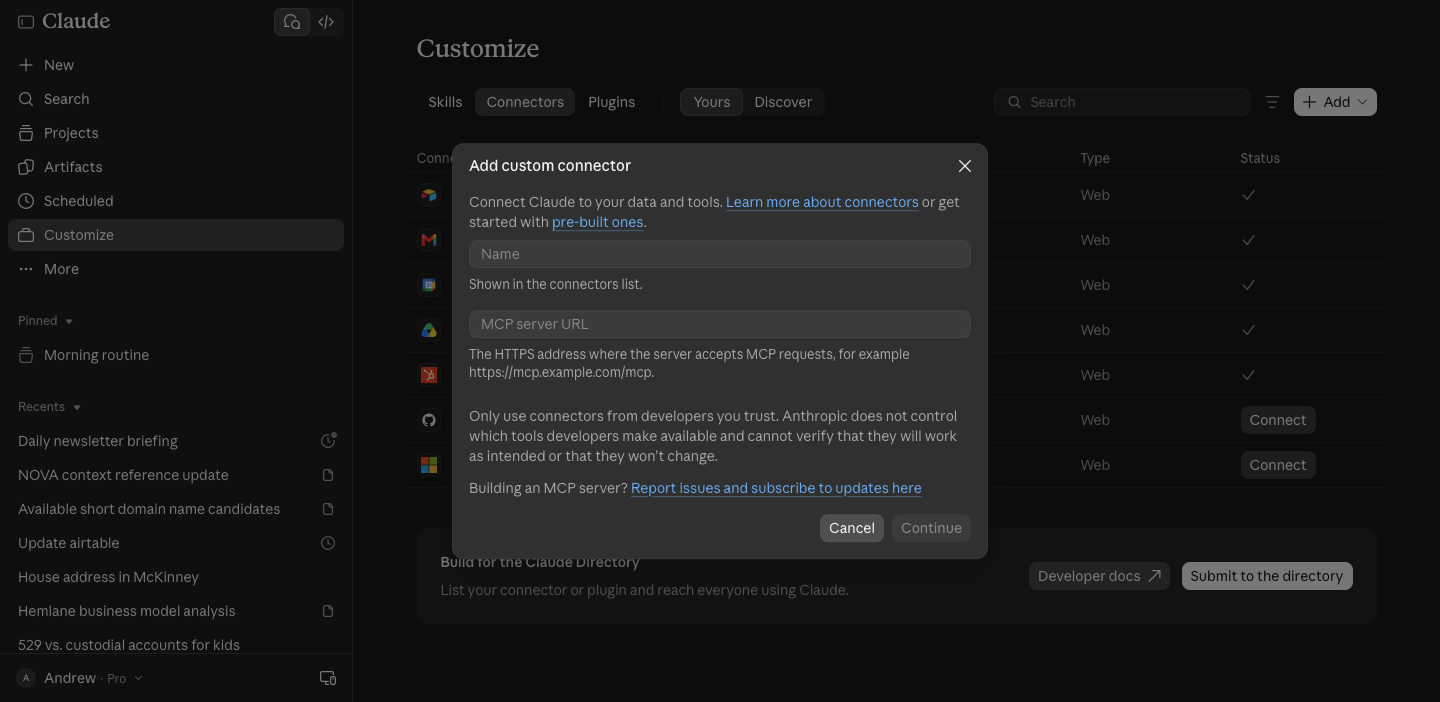
An organization Owner (or, on Enterprise, anyone with permission to manage the organization's connectors) adds Spur once for everyone:
Spur as the name and https://mcp.usespur.com/mcp as the URL, then click Continue.Each team member then goes to Customize → Connectors, finds Spur, and clicks Connect to sign in with their own Spur account.
Connectors are switched on per conversation. In a chat, click the + button at the bottom left, choose Connectors, and turn on Spur. Then ask for what you need, for example:
Find vacant single-family homes in Cleveland, OH with at least 50% equity and show them on a map.
To change the connector's settings later, remove it and add it again.
Setup guide
ChatGPT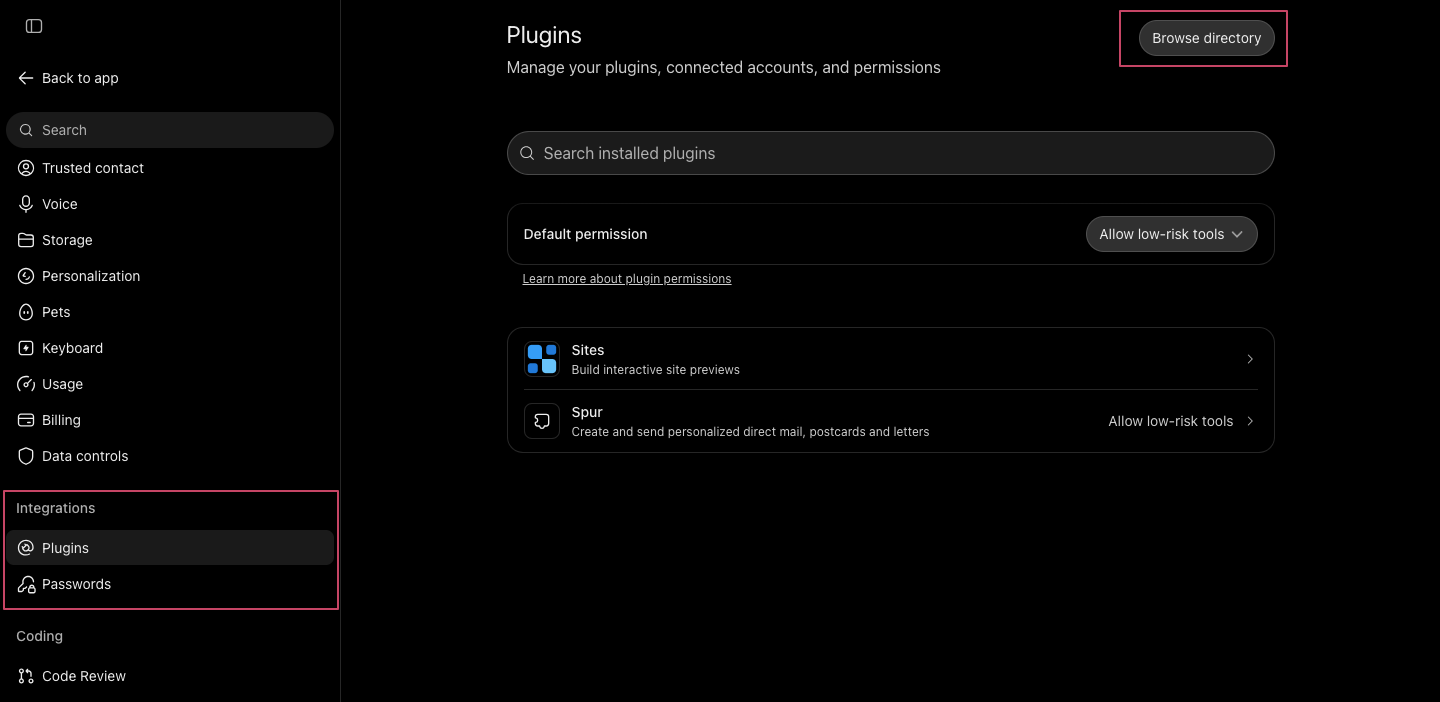
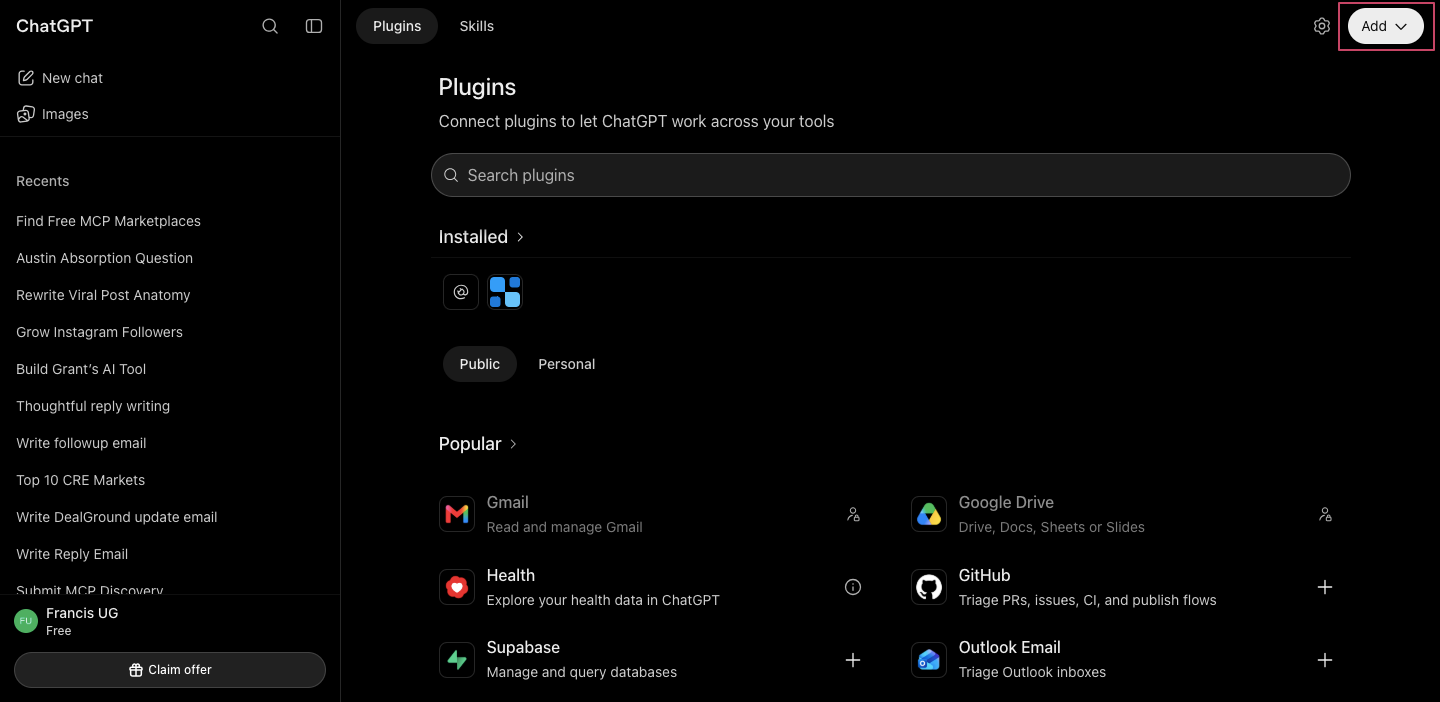
SpurReal estate leads, skip tracing, direct mail and outreachhttps://mcp.usespur.com/mcp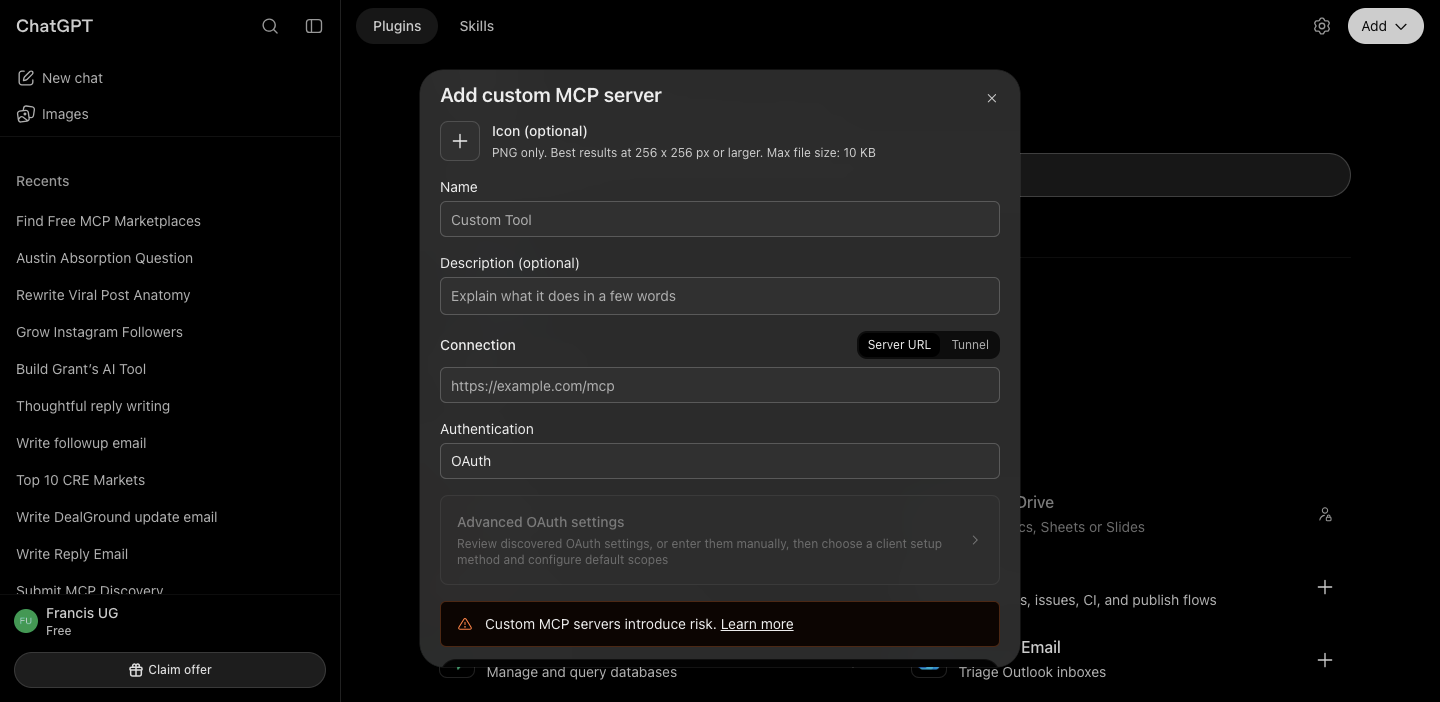
Once Spur is installed, it appears in Settings → Plugins, where you can change its permissions.
A workspace owner or admin controls whether members can add custom MCP servers. If you can't find the option, ask your admin to allow developer mode or custom connectors, or to approve Spur for the workspace.
Start a new conversation, type @ in the message box, and select Spur. ChatGPT asks you to confirm before Spur takes any action that changes something in your account.
Show my saved properties in Phoenix, then draft a 6×9 “We buy houses” postcard and preview it with one of the owners.
ChatGPT deep research: Spur also supports ChatGPT's search and fetch features, so deep research can draw on your saved Spur properties and owners.
Setup guide
Microsoft CopilotThe free consumer Copilot app (copilot.microsoft.com and the Windows Copilot app) doesn't currently let you add your own MCP servers. To use Spur with Microsoft Copilot, you or your IT team add it to a Copilot Studio agent, then publish that agent to Microsoft 365 Copilot and Teams.
SpurReal estate property search, owner skip tracing, direct mail (postcards and letters), SMS and email outreach, and marketing automations for the user's Spur account. Copilot uses this description to decide when to call Spur, so be specific.https://mcp.usespur.com/mcpSetup guide
Google Gemini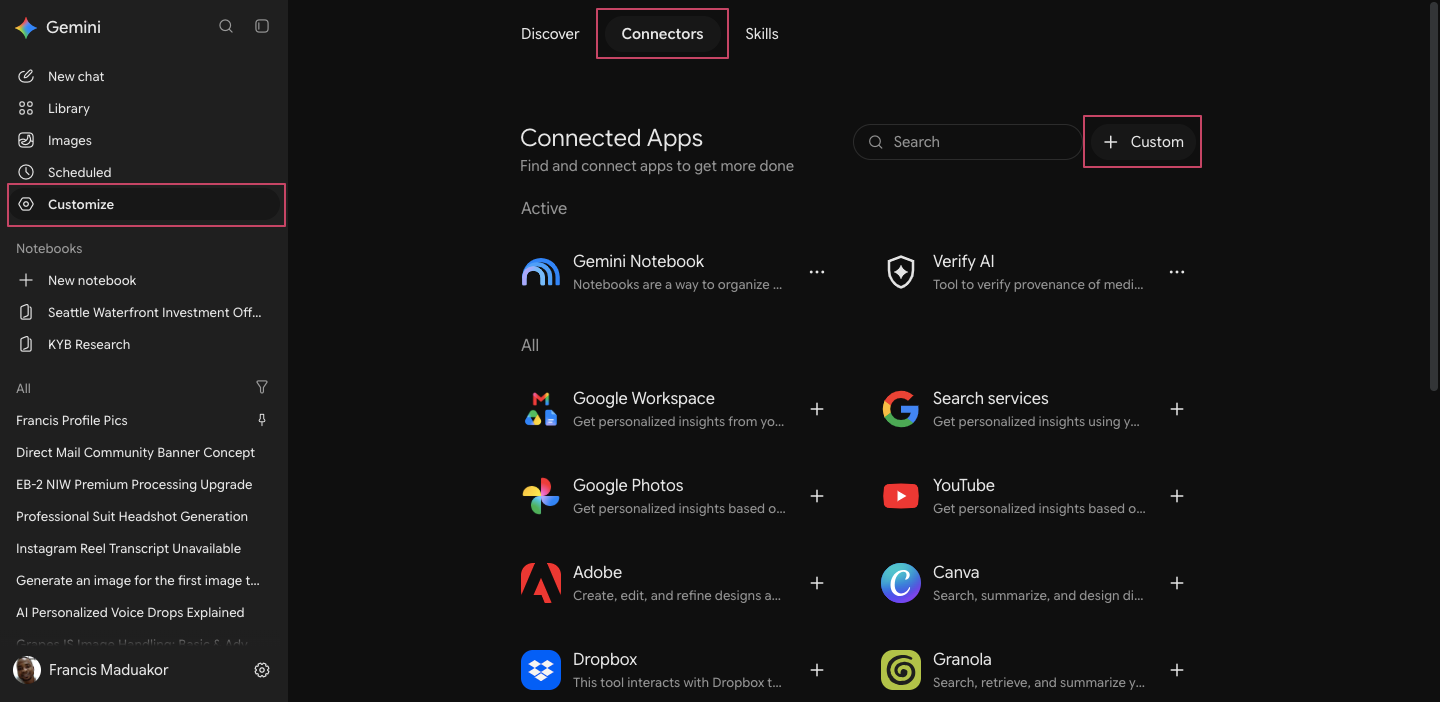
https://mcp.usespur.com/mcp into MCP Server URL.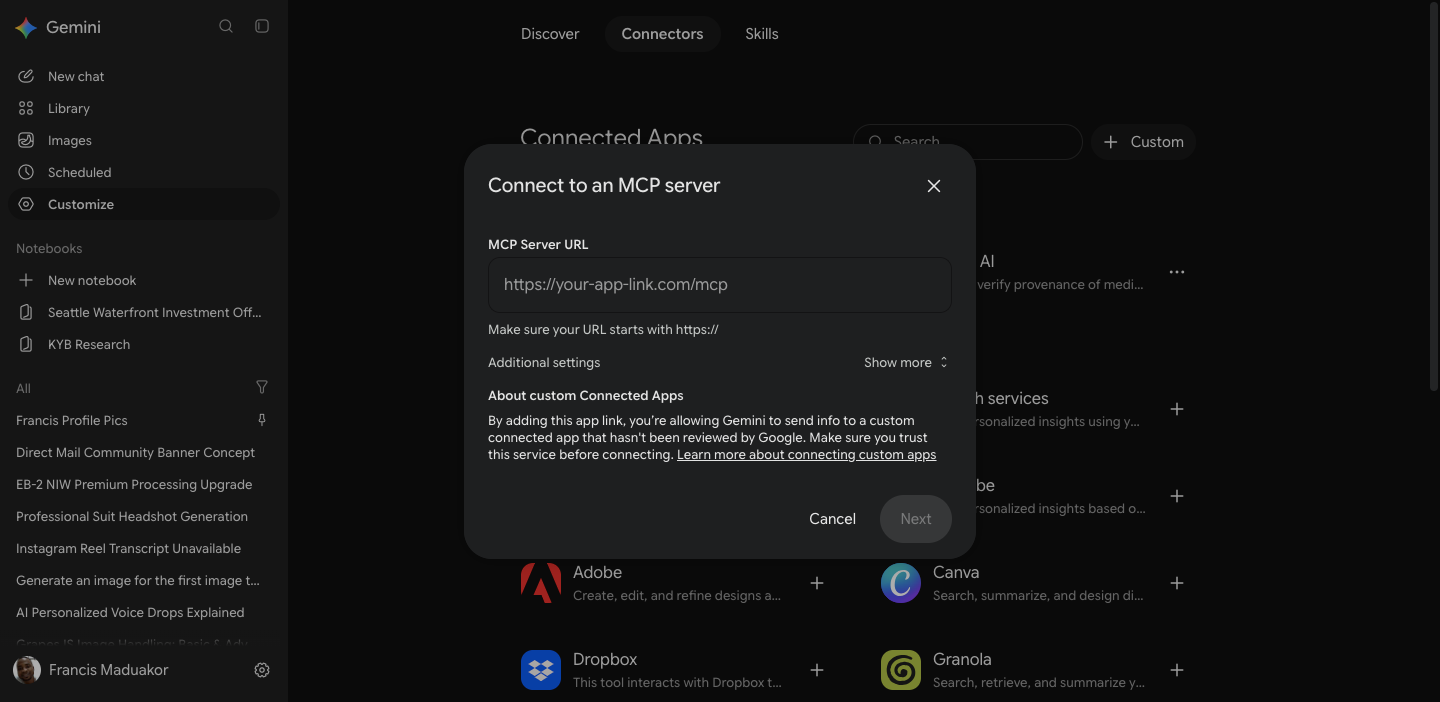
Type @ in the prompt box and choose Spur. Gemini asks you to confirm before any action that changes something.
@Spur Give me my weekly review: new leads, campaign results and replies I haven't answered.
In Customize → Connectors, open the ⋯ menu on Spur. You can switch Spur off (it stays in your list), or open More details and choose Disconnect or Remove app.
Setup guide
Grok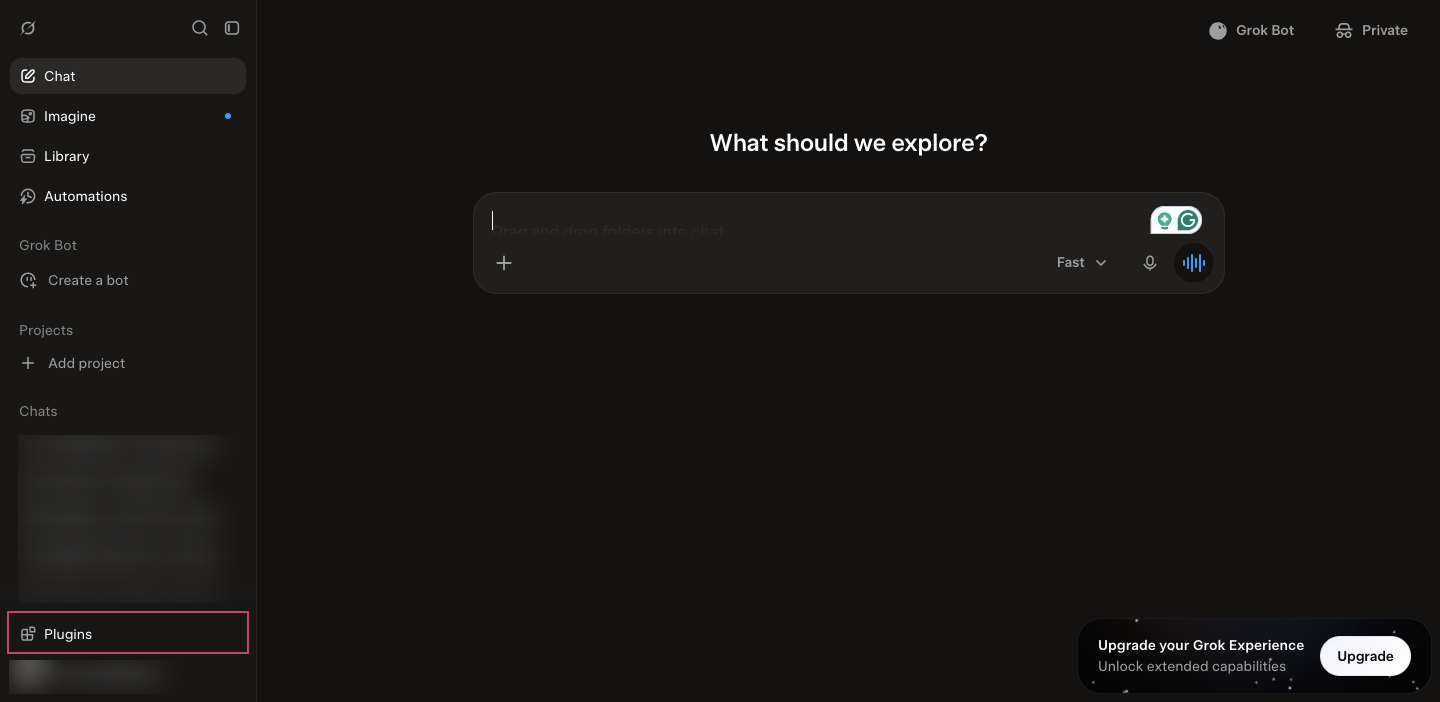
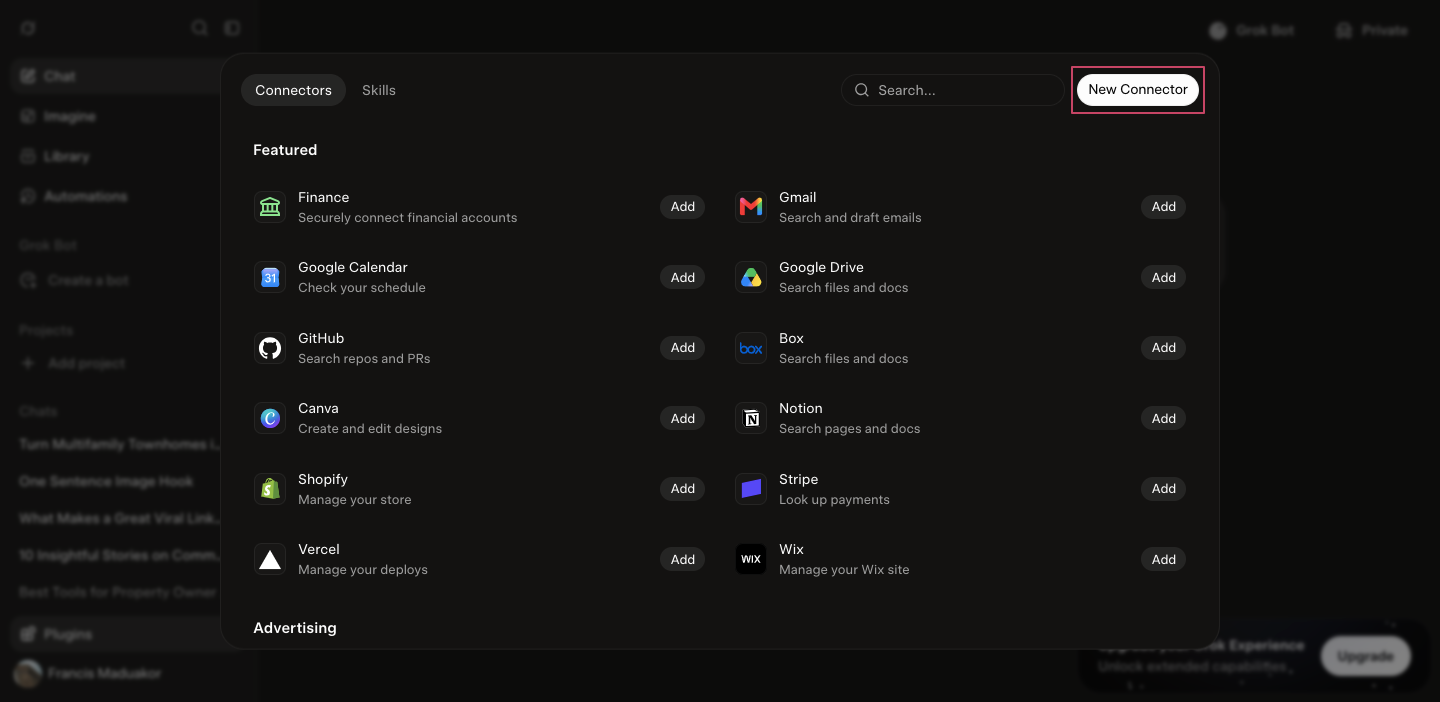
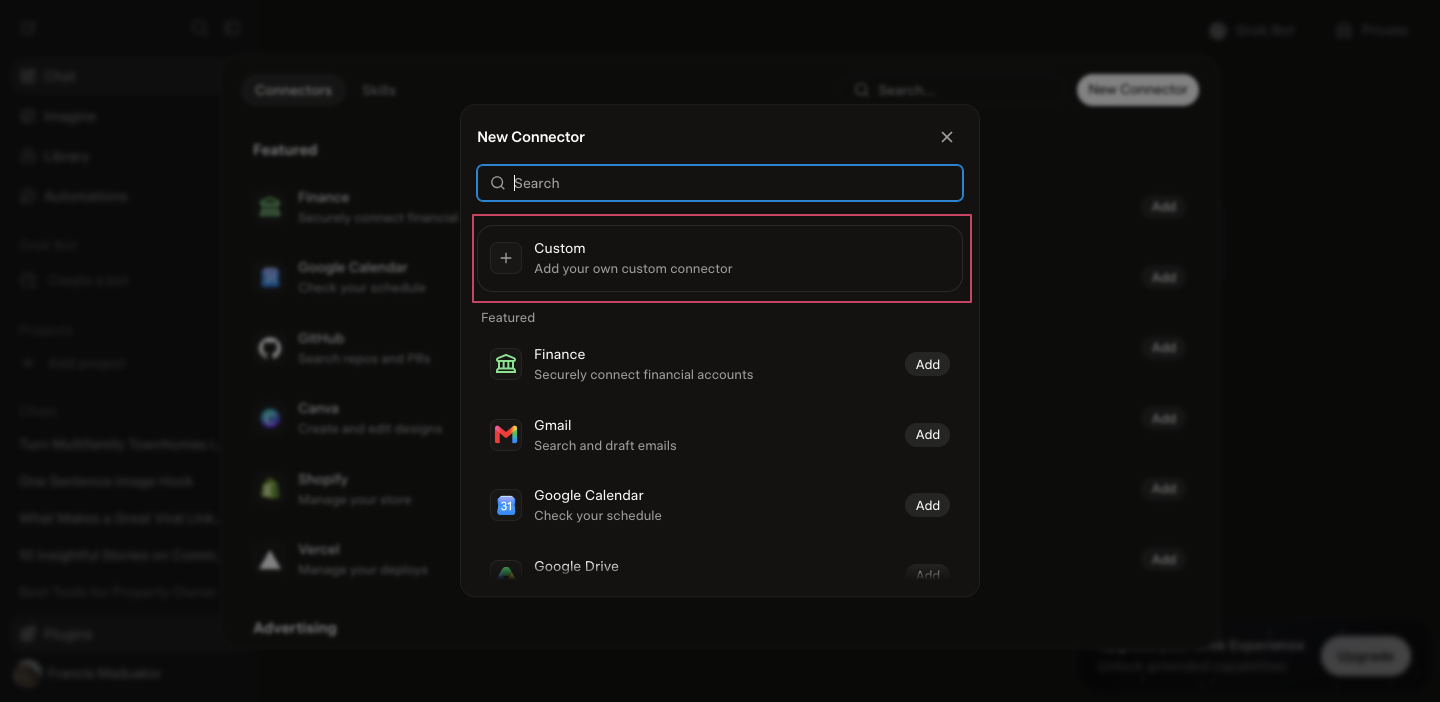
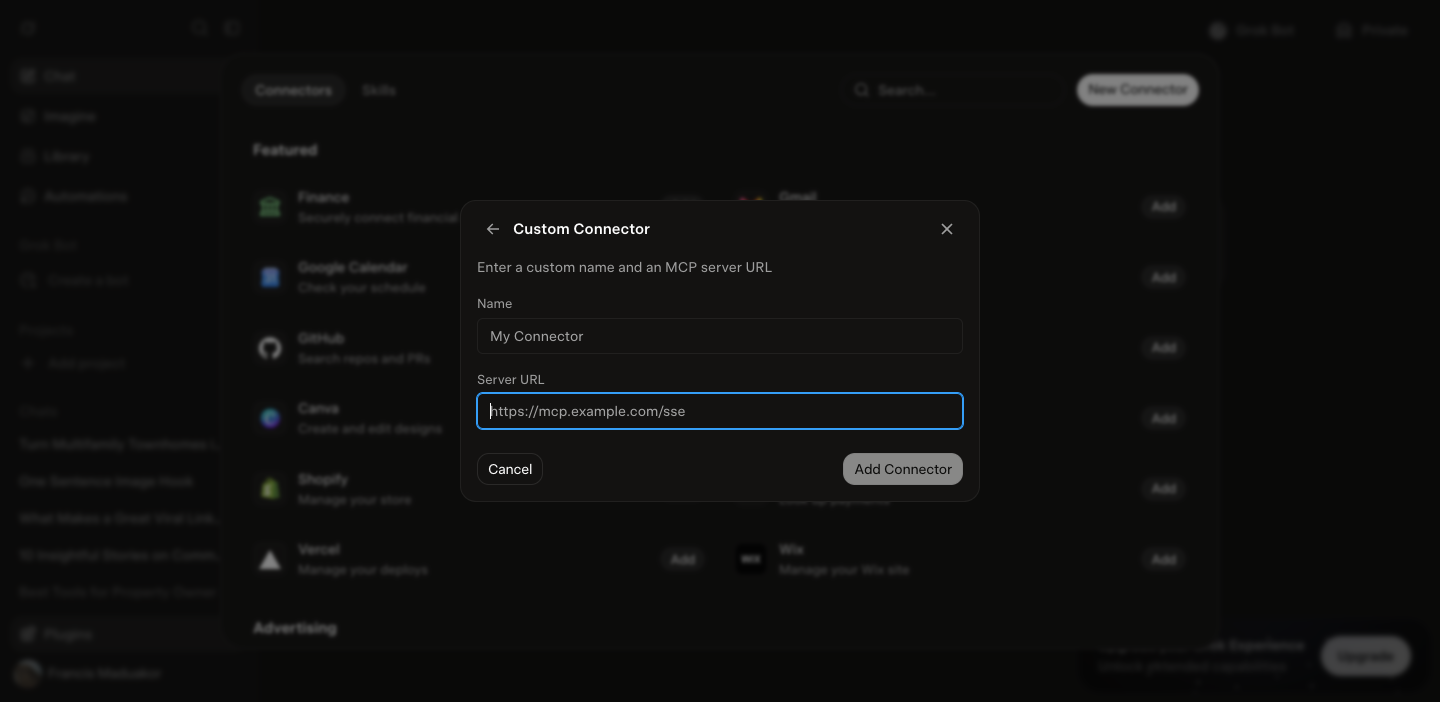
Spur as the Name and https://mcp.usespur.com/mcp as the Server URL, then
click Add Connector. (The example URL in the box ends in /sse. Ignore it, because Spur's address ends in /mcp.)
A team admin adds Spur in the xAI console (console.x.ai → your team → Grok Business → Connectors). Once it's set up, team members can connect their own Spur accounts.
Ask about your Spur data directly, and mention Spur by name so Grok knows to use it:
Using Spur, find pre-foreclosure properties in Atlanta and skip trace the top 10 owners.
Setup guide
PerplexitySpurhttps://mcp.usespur.com/mcpReal estate leads, skip tracing, direct mail and outreachTo edit or remove the connector later, use the ⋮ menu on its card.
Things to try
Troubleshooting
Check the URL is exactly https://mcp.usespur.com/mcp, including https:// and /mcp at the end, with no spaces.
Allow pop-ups for your assistant's website and try again. If your Spur account uses MFA, have your authenticator app ready. If you normally sign in to Spur with Google, choose Continue with Google on the Spur sign-in page.
Your plan may not include custom connectors (see the plan notes in each section), or your company admin may have turned them off. On work accounts, ask your admin to add or allow Spur.
Make sure Spur is switched on for that conversation (Claude: + → Connectors; ChatGPT and Gemini: type @Spur). Mentioning “Spur” in your request also helps.
Ask the assistant to “show my billing options”. You can top up your wallet or upgrade your plan right from the chat.
Sessions expire, and signing out in Spur → Security disconnects all assistants. Reconnect from your assistant's connector settings.
Interactive previews currently appear in Claude and ChatGPT. Other assistants show the same information as text.
Remove it from your assistant's connector or app settings. To disconnect every assistant at once, go to Spur → Security and sign out all sessions.
FAQ
No. Property searches, skip tracing, mail and messages cost the same as in the Spur app and come out of the same plan allowance and wallet. Your AI assistant's own subscription is separate.
No. Every action that spends money or contacts people needs your explicit approval, and mail can only be sent from a preview you've seen.
The assistant only sees the results of the requests made in your conversation, such as the properties it searched or the owner it looked up. Those results are handled under your assistant provider's privacy policy, like anything else in your chat. Spur's connector doesn't store your data. Every request goes directly to your Spur account.
Yes. Each person signs in with their own Spur account, so everyone keeps their own permissions and data access.
No. Spur's connector runs in the cloud. You only paste the URL into your assistant.
The Spur MCP server URL is https://mcp.usespur.com/mcp. It's the same for every AI assistant and every Spur account, and it uses the Streamable HTTP transport with OAuth sign-in.
Spur works with Claude, ChatGPT, Microsoft Copilot (through Copilot Studio), Google Gemini, Grok and Perplexity, plus any other assistant that supports remote MCP servers with OAuth. Claude and ChatGPT also show interactive previews such as a property map and postcard previews.
You can search properties by location, equity and owner status, skip trace owners for phone numbers and emails, build property lists, design and mail postcards and letters with tracked QR codes, write email and SMS templates, build multi-step outreach automations, read your SMS inbox, schedule saved searches, and check campaign reports and billing.
In ChatGPT, go to Settings, then Plugins, click Add, then Add custom MCP server. Name it Spur, paste https://mcp.usespur.com/mcp as the server URL, choose OAuth, then install it and sign in with your Spur account. In a chat, type @ and select Spur.
On claude.ai, click Customize, open Connectors, click + Add, then Add custom connector. Enter Spur as the name and https://mcp.usespur.com/mcp as the URL, click Continue and Add, then click Connect and sign in to Spur. Turn Spur on in a chat from the + menu under Connectors.
On gemini.google.com, click Customize, open Connectors, then click + Custom next to Connected Apps. Paste https://mcp.usespur.com/mcp as the MCP Server URL, click Next, and sign in to Spur. In a chat, type @ and choose Spur.
Yes, as com.usespur/spur.
Assistant menus change often. These steps were last checked on October 24, 2026. If something looks different, email francis@opennova.co and we'll help you get connected.
Run your pipeline from a chat
Book a quick call and we'll connect Spur to the assistant you use, then run your first search and postcard campaign together.